

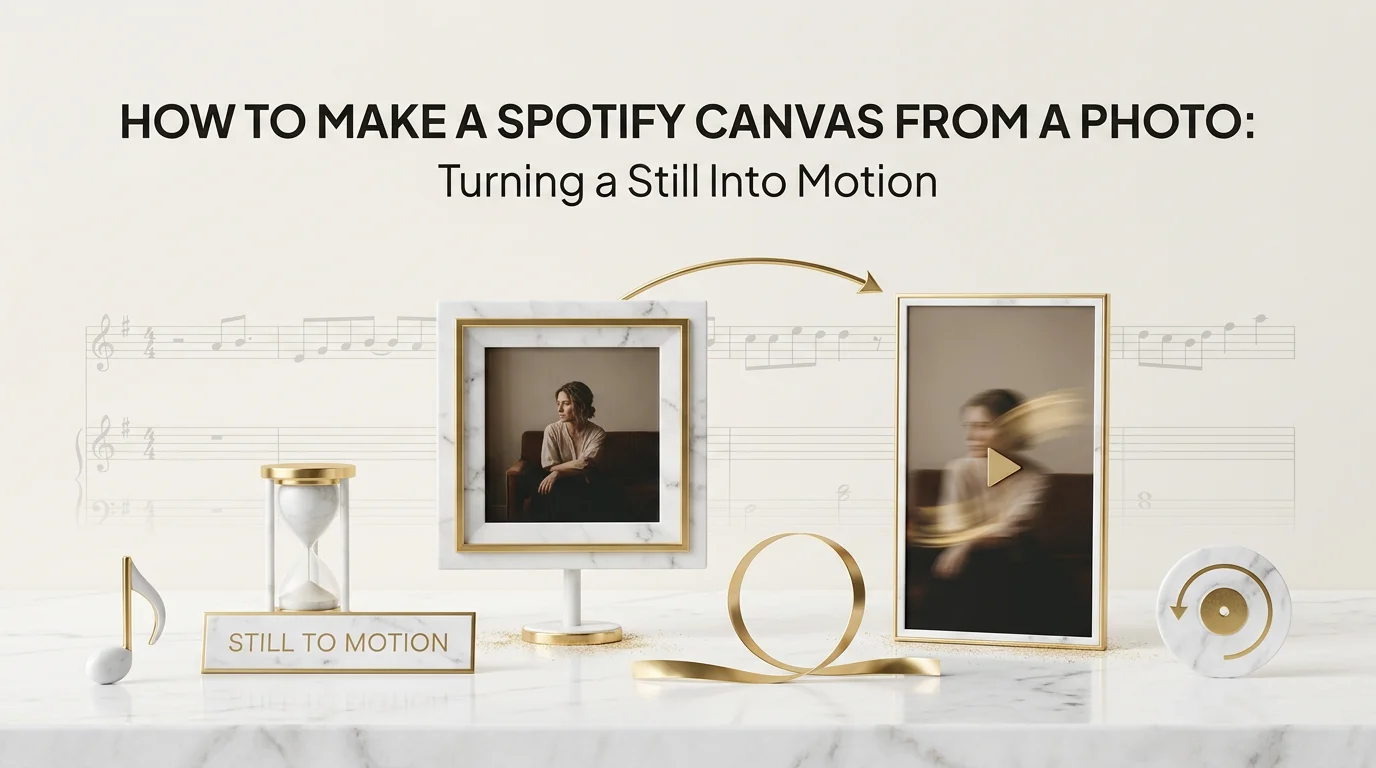
Not every release starts with video footage. A lot of artists have exactly one strong image, a cover shoot, a portrait, album art, and no appetite to shoot or edit a separate video just to get a Canvas live. The good news is a Canvas doesn't require original video at all. It requires a 9:16 loop, and a single photo with the right kind of motion added to it clears that bar completely.
The end result you're aiming for is a short, seamless vertical loop where the photo appears to breathe rather than sit frozen: light drifting, a slow camera push, subtle depth between subject and background. It should read as a considered creative choice, not an obvious "we didn't have video" fallback, and done well it's frequently indistinguishable from a Canvas shot on location.
Before starting, you need three things: the source photo itself (ideally high resolution), access to Echonos Studio for the animation and export step, and roughly ten to fifteen minutes to generate, review the loop, and adjust if the first pass isn't right. No filming, no separate video editor, and no prior experience with motion design is required.
Why a still photo needs motion to loop well
Spotify Canvas is a short, silent, looping video that plays under a track's audio on the mobile app. A completely static photo uploaded as-is will either get rejected by the file validator (Canvas is a video format, not a static image) or, if converted into a video with zero motion, will look flat and lifeless in the app compared to every other Canvas around it.
The goal isn't heavy animation. Subtle, continuous motion, a slow push-in, drifting light, gentle parallax between foreground and background, reads as intentional and premium. Fast or jarring motion on a loop point tends to look glitchy the moment it resets, since the viewer notices the seam.
Preparing an image the tool can use
Before animating anything, the source photo needs to be in reasonable shape:
- Resolution. Start from the highest-resolution version of the image you have. Upscaling a low-res source after the fact tends to introduce visible artifacts once motion is added.
- Format. Echonos accepts a broad range of image formats for this kind of workflow: PNG, JPG, JPEG, WebP, BMP, TIFF, TIF, SVG, HEIC, HEIF, and ICO. You don't need to pre-convert a phone photo or a design export before uploading it.
- Composition. An image with a clear subject and some depth (foreground/background separation) animates more convincingly than a flat, evenly-lit graphic. Album covers and portrait shots both tend to work well.
- Cropping expectations. Since the final Canvas is 9:16 vertical, a wide landscape photo will need cropping or padding. Decide upfront whether you want a tight vertical crop on the subject or a version with matting, since that changes what parts of the image matter for composition.
Spend a minute before you upload deciding what the "frame" of the loop actually is. If the photo has a lot of negative space above a subject's head, that space is where drifting light or a slow push-in reads most naturally. If the subject fills most of the frame already, the motion needs to be more restrained, since there's less room for anything to move without cropping into the subject itself.
Turning the photo into a moving Canvas
Once the image is ready, the workflow through Echonos looks like this:
- Upload the photo into the Studio or Vault. Vault is where character, style, and asset references live if you're reusing brand elements alongside the photo; Studio is where the generation itself happens.
- Use Smart Prompt to describe the motion you want, rather than a full scene description. Something like "slow push-in with drifting ambient light" gives Smart Prompt enough intent to route the request correctly. Smart Prompt's AUTO routing sends a request to image or video generation based on what you're asking for, never both at once, so for turning a still into a moving loop you want it routing to video.
- Let the generation run. Render time is minutes, not hours, so you can review and adjust before committing to a final export.
- Review the loop point specifically. Since Canvas repeats continuously, watch where the video resets and confirm it isn't jarring. If the seam is visible, regenerate rather than shipping a loop that jumps.
- Iterate on the motion, not just the crop, if the first pass feels too subtle or too aggressive. A Studio regeneration is a flat 50 credits for video, so it's worth getting the motion right before moving to export rather than shipping the first pass.
A useful habit at this stage: generate once, watch the full loop twice back to back before judging it. A single pass can hide a rough loop point because your attention is still on the overall look rather than the seam. Watching it repeat at least once tells you immediately whether the motion holds up on a genuine loop, which is the actual use case, rather than as a one-off clip.
Exporting a compliant 9:16 loop
Once the motion looks right, export needs to land within Spotify's Canvas spec:
- Aspect ratio: 9:16 vertical. This is what Echonos ships by default, so no separate cropping step is needed at export.
- No audio track in the file. Canvas plays silently under the track's real audio. If your export pipeline defaults to including a soundtrack, strip it before uploading.
- Duration inside Spotify's accepted window. Confirm the current allowed length against Spotify for Artists' own documentation at export time, since this is the one number worth verifying directly rather than trusting a cached memory of it.
- Resolution. Echonos Studio output is 2K, which is more than sufficient for how Canvas actually renders on a phone screen.
If the export gets rejected at the upload stage despite following all of this, the file-level causes (wrong duration, embedded audio, unsupported codec) are covered in full in Spotify Canvas not uploading.
Uploading it to your release
Echonos does not upload the Canvas to Spotify directly, and there's no official Spotify partnership or automatic upload path. The export is a compliant file; you still move it into your release manually:
- Download the finished 9:16 export from the Studio.
- Go to your distributor's Canvas upload tool (DistroKid, TuneCore, Amuse, or whichever service handled the release) for the specific track, since Canvas uploads route through the distributor in almost every case rather than through Spotify for Artists alone.
- Upload the file and confirm the dashboard marks it as accepted, not just uploading.
- Give it the normal propagation window, typically several hours and sometimes closer to a day, before checking the live track on the Spotify mobile app specifically. Desktop and web player don't render Canvas at all.
Common mistakes
- Animating too aggressively. A photo-based Canvas that whips or zooms hard tends to look more like a promo clip than ambient motion, and draws attention to the loop point.
- Forgetting the loop seam. The single most common photo-to-Canvas mistake is exporting without watching where the video resets. A visible jump undercuts the whole effect.
- Uploading a horizontal crop of the source photo. If the original image is landscape, decide on the vertical crop deliberately rather than letting an export tool auto-crop and cut off the subject.
- Skipping the duration check. A photo-based loop is easy to leave at a default length that doesn't match Spotify's current window. Check it before export, every time, since defaults aren't guaranteed to match spec.
- Assuming the Canvas uploads itself. There's no automatic path from Echonos to Spotify. The manual upload through your distributor is still a required step.
- Picking a photo with too little visual depth. A flat, evenly lit graphic with no foreground/background separation gives the motion nothing to work with, and the resulting animation can look artificial even when it's technically well executed. A photo with some natural depth, a subject against a softer background, gives more convincing results.
- Over-cropping a landscape source. A wide photo forced into a tight vertical crop can cut off exactly the part of the image, a hand, an instrument, the edge of a set, that made it interesting in the first place. Check the crop against the full frame before committing rather than trusting a default auto-crop.
Echonos workflow integration
This entire path, photo in, animated 9:16 loop out, sits inside the same Studio and Smart Prompt workflow used for any other Canvas or short-form export. There's no separate "photo animation" tool to learn. If you already have album art or a portrait from your Vault, the same asset library that stores your characters and styles is where that source image lives before you bring it into a Studio generation.
That reuse matters beyond convenience. An artist building out a full release, cover art, social posts, a Canvas, benefits from working off the same source image and the same Vault-stored character or style references across all of it, rather than recreating a look from scratch for each individual asset. A photo animated for Canvas today can be the same reference used again for a different piece of content later, since the source lives in one place rather than scattered across separate exports.
For the full breakdown of what a Canvas needs to actually go live once it's uploaded, including propagation timing and playback conditions, see why your Spotify Canvas is not working. And if you want the ground-up walkthrough of building a Canvas from scratch rather than from an existing photo, the Spotify Canvas maker guide covers that path.
Keep reading
Related Articles
Why Your Spotify Canvas Is Not Working: Causes From File to Playback
Spotify Canvas not working? Match your symptom to the cause: Data Saver, the Canvas toggle, rejected files, processing delays and access, then fix it fast.
Spotify Canvas Not Uploading: Fixing the File Before You Retry
Spotify Canvas not uploading? Fix the spec mismatch causing the rejection before you retry, with a compliant export and re-upload workflow that works.
Spotify Canvas Maker Guide: Specs, Best Practices, and the Streams Boost in 2026
Spotify Canvas maker guide for 2026: exact 9:16 specs (3–8s, 1080x1920 MP4), free vs AI tools, upload fixes, and how Canvas boosts stream shares.

Written by
Brandon GrossnickleFounder & CTO
Former Senior Data Scientist at Deloitte, contracted for U.S. Government programs and Walmart. Indie iOS developer with 7 apps on the App Store. Leads Echonos' core technology architecture, product strategy, and infrastructure scaling.