

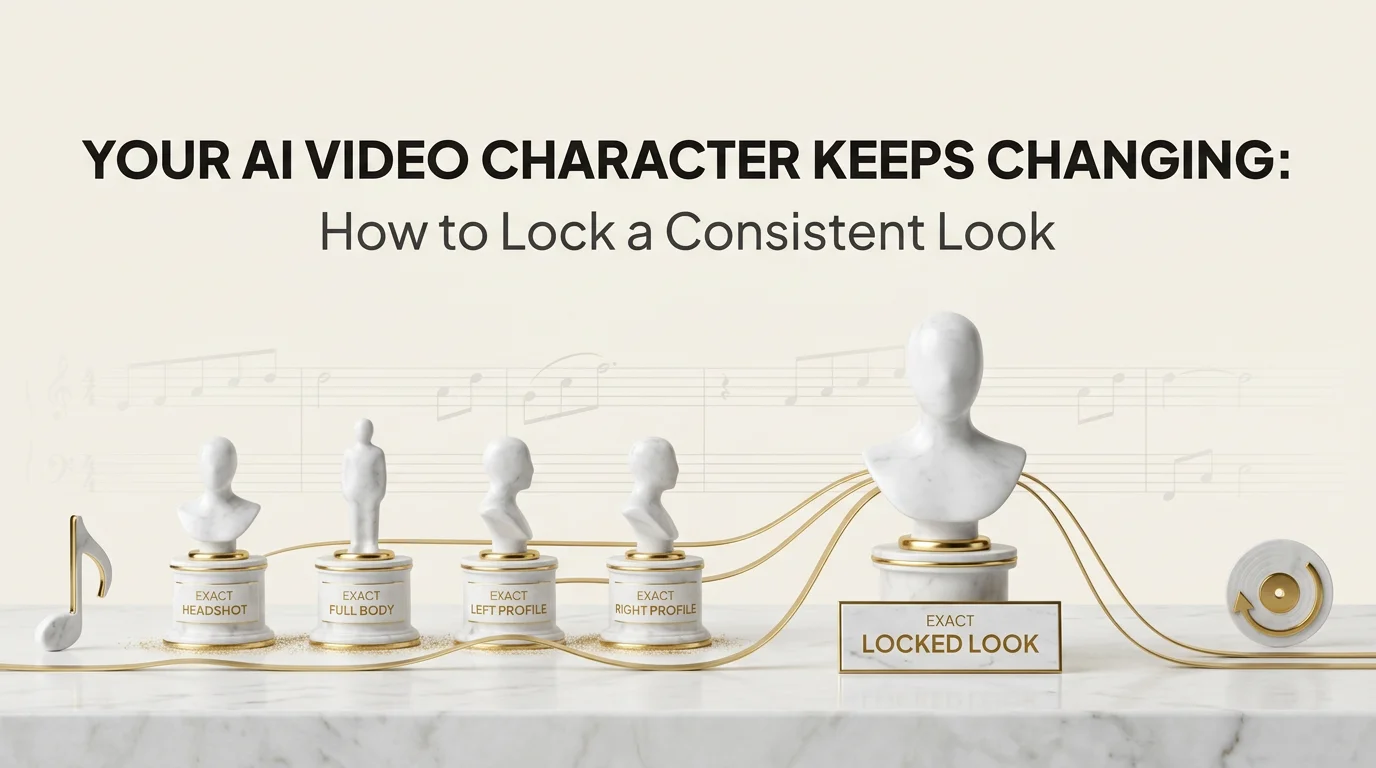
Scene one, your artist has a leather jacket and short hair. Scene four, same artist, different jacket, longer hair, and a face that's close but not quite right. That's the pattern behind ai video character keeps changing: nothing is technically broken, but the person on screen doesn't hold together as one person across the video.
This is the single most common consistency complaint in AI-generated music video work, and it has a specific, mechanical fix. It is not about better prompting alone. It is about whether you set up a persistent character layer before you generated anything.
Key Takeaways
- Ai video character keeps changing almost always means there's no persistent character layer, just a text description resampled fresh on every generation.
- Echonos Characters supports up to 4 reference image slots: Headshot (required), Full Body, Left Profile, and Right Profile (all three optional).
- Each reference image can be up to 10MB.
- A character set up once in Characters is saved to your Vault and reusable across every future release, not just the current video.
- An incomplete reference set (headshot only, no profile angles) is the second most common cause of drift, especially on side-angle or turning shots.
- Switching art styles mid-project without re-anchoring the character is the third cause, and it looks like a totally different person even with the same references.
Why faces and outfits shift between scenes
When a video generates a character from a text description alone, with no reference images attached, every scene is a fresh interpretation of that description. "A woman in her late 20s with dark curly hair and a denim jacket" is consistent as a sentence, but the model re-imagines the specific face, the exact hair length, and the jacket's cut independently each time it renders a new scene. Nothing is anchored. The result reads as "close enough" scene to scene, which is exactly the drift readers notice first, because human faces are the thing we're wired to scrutinize hardest.
The second common cause is a reference set that's technically present but incomplete. If you upload only a front-facing headshot, the model has nothing to work from the moment a scene calls for a side profile or a full-body shot. It's forced to guess the rest of the face and body from a single angle, and the guess drifts.
The third cause: switching an art style mid-project (say, from a painterly look to a photoreal one) without re-anchoring the character reference to that new style. The reference images ground the character's identity, but if the surrounding visual style changes dramatically, the character can end up rendered in a way that no longer reads as "the same person," even with the same source images behind it.
How a persistent character layer fixes drift
Echonos Characters exists specifically to solve this. Instead of describing your artist or persona fresh in every prompt, you set the character up once, with real reference images, and every subsequent generation pulls from that same anchored identity. It's the difference between describing a person to a sketch artist from memory each time versus handing over an actual photo.
Once a character is set up, it saves to your Vault, which means it isn't scoped to one song or one video. You reuse the same character across an entire release, a whole EP, or a full artist persona spanning multiple videos over time, without rebuilding the reference set from scratch each time.
Setting up reference images that hold up
This is where the exact numbers matter, so get them right: Echonos Characters gives you up to 4 reference image slots.
- Headshot: required. This is the anchor image and the one slot you cannot skip.
- Full Body: optional, but strongly recommended if any scene in your video shows the character below the shoulders.
- Left Profile: optional, but recommended if any scene turns the character's head or shows a side angle.
- Right Profile: optional, same reasoning as left profile.
Each reference image can be up to 10MB. A headshot-only setup will work for straight-on shots, but the moment your storyboard calls for a turn, a walk, or a three-quarter angle, an incomplete set is exactly where drift creeps back in. If your video has any scene beyond a static front-facing shot, fill all four slots before you generate, not after you notice a scene has gone wrong.
Five specific mistakes that cause drift, and the direct fix for each
- Describing the character in the prompt instead of attaching references. Text descriptions get reinterpreted fresh every generation. Fix: always attach the saved Character rather than typing a description, even a detailed one.
- Uploading only a headshot, then generating full-body or angled shots anyway. The model has to invent the rest of the body and profile from a single frontal image, and the invention drifts. Fix: fill the Full Body and both profile slots before generating any scene that isn't a straight-on close-up.
- Swapping art styles mid-project without reattaching the character. A style change can subtly shift how the reference renders. Fix: after any style change, generate a single test scene and check the character reads consistently before committing to the rest of the video.
- Reusing an old, low-resolution, or poorly lit reference photo. A blurry or badly lit headshot gives the model less to anchor to, which shows up as more variation between scenes. Fix: use a clear, well-lit, front-facing photo under the 10MB limit as the headshot.
- Starting a new video job without re-selecting the saved Character. It's easy to begin a fresh generation and forget to attach the persona from a prior release. Fix: check that the Character is selected before every generation, not just the first one in a project.
Reusing your character across a full release
Because a Character lives in your Vault rather than inside a single video job, the setup work is a one-time cost per persona, not a per-video cost. Set your artist or character up once with a complete four-slot reference set, and every video you generate afterward, whether it's a single, a music video for a deep cut, or a full visual EP, pulls from the same anchored identity.
This also matters for planning a release across multiple videos: if you're mapping out a 21-day release week or building out a broader visual campaign, setting the character up correctly once at the start removes an entire category of rework later. It's worth doing the four-slot setup properly before the first video in a release cycle rather than patching it mid-campaign.
Fixing a scene where the look slipped
Even with a complete reference set, an individual scene can occasionally slip, usually on an unusual angle or an extreme lighting change the references didn't anticipate. When that happens, you don't need to rebuild the whole video. If the rest of the clip works, trim or cover the slipped shot in any video editor (CapCut, Premiere, DaVinci). If the shot matters, run that moment again with the Character attached and a tighter prompt; a run renders 10 to 30 seconds from the moment of the song you pick, so you only redo the section that slipped. For angles you know will be tricky, plan them up front in Storyboard (one reference frame plus nine described beats) and render with Orpheon.
Before you run it again, check two things. First, confirm the character reference is actually attached to that generation (it's easy to start a new job without re-selecting the saved character). Second, check whether the art style on that specific scene matches the rest of the video. If the style shifted, that's usually the actual cause, not a one-off model error.
FAQ
FAQ
5 questions answered. Tap to expand.
How many reference images does Echonos Characters support?
How many reference images does Echonos Characters support?
Up to 4 slots: Headshot (required), plus Full Body, Left Profile, and Right Profile, all three optional. Each image can be up to 10MB. A headshot alone works for straight-on shots, but any scene with an angle, a turn, or a full-body view benefits from filling the optional slots too.
Why does my character look right in some scenes and different in others?
Why does my character look right in some scenes and different in others?
This is usually an incomplete reference set. If you only uploaded a headshot, the model has to guess the character's profile and body from a single angle whenever a scene needs one, and that guess is where the drift shows up. Fill the Full Body and both profile slots if your storyboard includes any non-frontal shots.
Do I have to set my character up again for every new video?
Do I have to set my character up again for every new video?
No. A Character set up through Echonos Characters saves to your Vault, so it's reusable across every future release, not scoped to a single video. Set it up once with a complete reference set and generate from it for every subsequent song.
Can changing the art style cause a consistent character to suddenly look different?
Can changing the art style cause a consistent character to suddenly look different?
Yes. A dramatic style switch, say from painterly to photoreal, without re-anchoring the character to the new style can make the same reference images render in a way that no longer reads as the same person. If a character looks off right after a style change, that's the first thing to check.
Is fixing one scene where the character slipped expensive?
Is fixing one scene where the character slipped expensive?
Not usually. A run's credit cost scales with clip length and model, so rerunning only the short moment that slipped draws far less than rebuilding a longer cut, and trimming the shot in a video editor costs no credits at all. Isolate the moment that slipped rather than redoing the whole video.
If your persona needs to hold up across an entire release rather than one video, Echonos Characters is built around exactly that: set the four reference slots up once, save it to your Vault, and generate every future video from the same anchored identity instead of resampling a description from scratch each time.
Keep reading
Related Articles

AI Video Generation Failed: A Practical Checklist to Get It Running
Your AI video generation failed and you need it fixed now. This checklist covers the real causes, from file format to credits, and the exact fix for each.
Character Consistency in AI Music Videos: Why It Is the Foundation of Your Artist Brand in 2026
How character consistency works in AI music videos: keeping the same face, outfit, and visual identity stable across every scene and release.

Echonos Vault: Music Asset Management for Artists Who Release More Than Once
How music asset management works for serial releasers: storing audio, characters, custom art styles, and release visuals in one organized library.

Written by
Hari DevanathanLead Backend Engineer
Ex-Microsoft and Senior AI/Cloud Engineer at Leidos, building NLP, OCR, vector search, and LLM pipelines that generated ~$20M annually. Owns Echonos' audio intelligence and black-box generation pipeline, including audio analysis, beat detection, and GCP infrastructure.